background img

Dedicated to Google and Google products. Curated by Karmi Phúc.

Showing posts with label fun. Show all posts
5_dieu_ban_co_the_lam_voi_smartphone_camera. ​

Dùng camera trên smartphone để chụp và chia sẻ ảnh hay video không còn là chuyện xa lạ. Ngay cả việc chỉnh sửa lại ảnh cho "ảo dịu" hơn cũng không còn là thứ gì đó quá phức tạp mà ai ai cũng có thể làm được. Vậy thì ngoài những thứ đó ra, máy ảnh trên điện thoại thông minh còn có thể làm được những gì nữa? Hôm nay trong bài viết này, mình xin chia sẻ với anh em một số thứ vui vẻ và hữu ích mà có thể anh em không ngờ được là camera của smartphone có thể làm được. Nếu bạn có những thứ gì khác muốn chia sẻ thì xin mời đăng ngay trong topic này cho mọi người cùng xem nhé.

Nội dung chính của bài viết
noi_dung.
​

1. Quét phim chụp từ máy ảnh

Hiện nay khi cần chuyển phim âm bản (hoặc dương bản) thành ảnh số, chúng ta hay ra tiệm hoặc xài máy scan có hỗ trợ việc scan phim. Smartphone của bạn cũng có thể làm được như thế, và nó rất phù hợp khi bạn cần xem nhanh một tấm phim nào đó (còn muốn số hóa để lưu trữ ở độ phân giải cao thì phải xài những giải pháp khác rồi). Tất cả những gì bạn cần làm là tải về phần mềm phù hợp, đặt tấm ảnh của mình lê n một bề mặt nào đó có chiếu sáng, ví dụ như màn hình laptop/tablet, hộp đèn rồi hướng camera vào để quét là xong. Lưu ý là bạn nên để smartphone vuông góc với film để hạn chế tối đa hiện tượng méo hình.

quet_phim_am_ban. ​

Nói về app, mình đề xuất các bạn xài Helmut Film Scanner đối với Android, còn nếu đang dùng iPhone thì hãy thử qua LomoScanner. Cả hai app miễn phí này đều hỗ trợ chuyển từ ảnh âm bản sang thành ảnh số dương bản với màu sắc đầy đủ, ngoài ra chúng cũng có tích hợp thêm công cụ cắt cúp và xoay ảnh để cho ra kết quả mỹ mãn nhất. Vài app có phí khác thì ngon hơn, thêm nhiều tính năng chỉnh sửa ảnh và không có quảng cáo.

2. Xác định màu sắc

Đôi khi bạn thấy một màu rất đẹp nhưng không biết được tên gọi của nó, hoặc bạn cần lấy mã màu của các vật trong đời thật dưới dạng mã Hex (hoặc RGB, HSV, CMYK,...) để dùng trong các trình chỉnh sửa ảnh, thiết kế website, đồ họa. Đây là những lúc mà smartphone sẽ trở thành một công cụ hữu ích nhờ những phần mềm xác định màu (color indentifier). Bạn có thể xài Color Grab dành cho Android hoặc Color ID đối với iOS để thực hiện những công việc như trên. Bạn cũng có thể "chụp" lại một màu sắc nhất định nào đó để ghi nhớ và từ từ dùng sau. Lưu ý là nên chụp ở môi trường đủ sáng thì màu sẽ chính xác hơn nhiều so với chụp trong tối.

Xac_dinh_mau_sac. ​

3. Tìm kiếm thông minh

Google có một phần mềm khá hay tên là Goggles. Nó có khả năng tìm kiếm dựa trên hình ảnh chụp bằng camera, chúng ta không cần phải nhập gì vào cả. Tất cả những gì bạn cần là hướng camera về phía đối tượng cần tìm kiếm t hông tin, ví dụ như logo của một công ty, một địa danh, một tác phẩm nghệ thuật, bức tranh, một sản phẩm... Goggles sẽ tiến hành phân tích và trả về kết quả tương ứng. Tất nhiên là với những thứ lạ lùng quá thì app khó mà tìm được, những thứ nổi tiếng và phổ biến thì sẽ có xác suất xuất hiện cao hơn.

Google_Goggles. ​

Ngoài ra, phần mềm này còn có thể đóng vai trò của một cái máy quét chữ (nhận diện chữ trong hình ảnh rồi tìm kiếm), công cụ phiên dịch (chụp văn bản tiếng nước ngoài rồi dịch sang ngôn ngữ bạn muốn) và thậm chí còn giải đố Sudoku được nữa.

Lưu ý: trên Android thì cài thêm Goggles, còn bên iOS bạn có thể xài trực tiếp ứng dụng tìm kiếm Google để có hiệu quả tương tự

4. Xác định font chữ

Lúc đi đường hoặc xem một cái poster bạn thấy chữ viết đẹp quá và muốn biết font chữ được dùng là gì, khi đó hãy xài đến ứng dụng WhatTheFont. Phần mềm này cho phép bạn chụp lại một đoạn chữ, sau đó upload lên máy chủ của hãng để xác định kí tự và đưa ra font chữ được xài trong ảnh. Bạn có thể được yêu cầu điền vào một số kí tự mà app không thể xác định (hoặc xác định không chính xác) trước khi kết quả cuối cùng được đưa ra. Mình có thử với một vài cụm từ thì thấy font chữ tìm được rất giống với chữ mình đang nhìn thấy nên mình đánh giá cao WhatTheFont. Ngoài ra, app cũng đề xuất thêm một số font chữ gần gần giống để bạn có thể tham khảo nữa.

font_tim_kiem. ​

5. Dùng camera trước và sau trong một ảnh

DblCam dành cho iOS có khả năng chụp hai hình ảnh cùng lúc và đặt chúng bên cạnh nhau: một tấm chụp bằng camera trước, tấm còn lại chụp bằng camera sau. Nhờ khả năng này mà bạn có thể thoải mái suy nghĩ và sáng tạo ra những tấm ảnh ngộ nghĩnh và vui vẻ. Nếu đi chơi hoặc chụp nhóm, bạn cũng có thể xài DblCam để chụp một tấm có mặt bạn bè đông đủ, tấm còn lại là hình của bạn, đảm bảo không thiếu ai cả. Bên Android thì chúng ta có phần mềm Double Shot Camera hoặc Dual Cam Front-Back Camera sẽ cung cấp tính năng tương tự. LG, HTC và Samsung thì có tích hợp sẵn tính năng chụp 2 camera vào trình chụp ảnh mặc định của máy, nhưng nếu thích các kiểu sáng tạ o hơn, vui hơn thì vẫn nên cài thêm 2 app mình vừa nói.

Chup_camera_truoc_sau.
​
Tham khảo: MakeUseOf​

Source: http://camera.tinhte.vn/threads/5-thu-vui-ve-ban-co-the-lam-voi-camera-tren-smartphone-android-va-ios.2247052

5 thứ vui vẻ bạn có thể làm với camera trên smartphone Android và iOS

5_dieu_ban_co_the_lam_voi_smartphone_camera. ​

Dùng camera trên smartphone để chụp và chia sẻ ảnh hay video không còn là chuyện xa lạ. Ngay cả việc chỉnh sửa lại ảnh cho "ảo dịu" hơn cũng không còn là thứ gì đó quá phức tạp mà ai ai cũng có thể làm được. Vậy thì ngoài những thứ đó ra, máy ảnh trên điện thoại thông minh còn có thể làm được những gì nữa? Hôm nay trong bài viết này, mình xin chia sẻ với anh em một số thứ vui vẻ và hữu ích mà có thể anh em không ngờ được là camera của smartphone có thể làm được. Nếu bạn có những thứ gì khác muốn chia sẻ thì xin mời đăng ngay trong topic này cho mọi người cùng xem nhé.

Nội dung chính của bài viết
noi_dung.
​

1. Quét phim chụp từ máy ảnh

Hiện nay khi cần chuyển phim âm bản (hoặc dương bản) thành ảnh số, chúng ta hay ra tiệm hoặc xài máy scan có hỗ trợ việc scan phim. Smartphone của bạn cũng có thể làm được như thế, và nó rất phù hợp khi bạn cần xem nhanh một tấm phim nào đó (còn muốn số hóa để lưu trữ ở độ phân giải cao thì phải xài những giải pháp khác rồi). Tất cả những gì bạn cần làm là tải về phần mềm phù hợp, đặt tấm ảnh của mình lê n một bề mặt nào đó có chiếu sáng, ví dụ như màn hình laptop/tablet, hộp đèn rồi hướng camera vào để quét là xong. Lưu ý là bạn nên để smartphone vuông góc với film để hạn chế tối đa hiện tượng méo hình.

quet_phim_am_ban. ​

Nói về app, mình đề xuất các bạn xài Helmut Film Scanner đối với Android, còn nếu đang dùng iPhone thì hãy thử qua LomoScanner. Cả hai app miễn phí này đều hỗ trợ chuyển từ ảnh âm bản sang thành ảnh số dương bản với màu sắc đầy đủ, ngoài ra chúng cũng có tích hợp thêm công cụ cắt cúp và xoay ảnh để cho ra kết quả mỹ mãn nhất. Vài app có phí khác thì ngon hơn, thêm nhiều tính năng chỉnh sửa ảnh và không có quảng cáo.

2. Xác định màu sắc

Đôi khi bạn thấy một màu rất đẹp nhưng không biết được tên gọi của nó, hoặc bạn cần lấy mã màu của các vật trong đời thật dưới dạng mã Hex (hoặc RGB, HSV, CMYK,...) để dùng trong các trình chỉnh sửa ảnh, thiết kế website, đồ họa. Đây là những lúc mà smartphone sẽ trở thành một công cụ hữu ích nhờ những phần mềm xác định màu (color indentifier). Bạn có thể xài Color Grab dành cho Android hoặc Color ID đối với iOS để thực hiện những công việc như trên. Bạn cũng có thể "chụp" lại một màu sắc nhất định nào đó để ghi nhớ và từ từ dùng sau. Lưu ý là nên chụp ở môi trường đủ sáng thì màu sẽ chính xác hơn nhiều so với chụp trong tối.

Xac_dinh_mau_sac. ​

3. Tìm kiếm thông minh

Google có một phần mềm khá hay tên là Goggles. Nó có khả năng tìm kiếm dựa trên hình ảnh chụp bằng camera, chúng ta không cần phải nhập gì vào cả. Tất cả những gì bạn cần là hướng camera về phía đối tượng cần tìm kiếm t hông tin, ví dụ như logo của một công ty, một địa danh, một tác phẩm nghệ thuật, bức tranh, một sản phẩm... Goggles sẽ tiến hành phân tích và trả về kết quả tương ứng. Tất nhiên là với những thứ lạ lùng quá thì app khó mà tìm được, những thứ nổi tiếng và phổ biến thì sẽ có xác suất xuất hiện cao hơn.

Google_Goggles. ​

Ngoài ra, phần mềm này còn có thể đóng vai trò của một cái máy quét chữ (nhận diện chữ trong hình ảnh rồi tìm kiếm), công cụ phiên dịch (chụp văn bản tiếng nước ngoài rồi dịch sang ngôn ngữ bạn muốn) và thậm chí còn giải đố Sudoku được nữa.

Lưu ý: trên Android thì cài thêm Goggles, còn bên iOS bạn có thể xài trực tiếp ứng dụng tìm kiếm Google để có hiệu quả tương tự

4. Xác định font chữ

Lúc đi đường hoặc xem một cái poster bạn thấy chữ viết đẹp quá và muốn biết font chữ được dùng là gì, khi đó hãy xài đến ứng dụng WhatTheFont. Phần mềm này cho phép bạn chụp lại một đoạn chữ, sau đó upload lên máy chủ của hãng để xác định kí tự và đưa ra font chữ được xài trong ảnh. Bạn có thể được yêu cầu điền vào một số kí tự mà app không thể xác định (hoặc xác định không chính xác) trước khi kết quả cuối cùng được đưa ra. Mình có thử với một vài cụm từ thì thấy font chữ tìm được rất giống với chữ mình đang nhìn thấy nên mình đánh giá cao WhatTheFont. Ngoài ra, app cũng đề xuất thêm một số font chữ gần gần giống để bạn có thể tham khảo nữa.

font_tim_kiem. ​

5. Dùng camera trước và sau trong một ảnh

DblCam dành cho iOS có khả năng chụp hai hình ảnh cùng lúc và đặt chúng bên cạnh nhau: một tấm chụp bằng camera trước, tấm còn lại chụp bằng camera sau. Nhờ khả năng này mà bạn có thể thoải mái suy nghĩ và sáng tạo ra những tấm ảnh ngộ nghĩnh và vui vẻ. Nếu đi chơi hoặc chụp nhóm, bạn cũng có thể xài DblCam để chụp một tấm có mặt bạn bè đông đủ, tấm còn lại là hình của bạn, đảm bảo không thiếu ai cả. Bên Android thì chúng ta có phần mềm Double Shot Camera hoặc Dual Cam Front-Back Camera sẽ cung cấp tính năng tương tự. LG, HTC và Samsung thì có tích hợp sẵn tính năng chụp 2 camera vào trình chụp ảnh mặc định của máy, nhưng nếu thích các kiểu sáng tạ o hơn, vui hơn thì vẫn nên cài thêm 2 app mình vừa nói.

Chup_camera_truoc_sau.
​
Tham khảo: MakeUseOf​

Source: http://camera.tinhte.vn/threads/5-thu-vui-ve-ban-co-the-lam-voi-camera-tren-smartphone-android-va-ios.2247052

In "The Hobbit," a company of Dwarves tries to reclaim the lost kingdom of Erebor from Smaug the Terrible, a fire-breathing Dragon. While the Dwarves' quest is fraught with danger, your journey to Erebor is just a click away in "A Journey Through Middle-earth," the Chrome Experiment released a few weeks ago from Warner Bros. Pictures, New Line Cinema and Metro-Goldwyn-Mayer Pictures (MGM).

You can now follow the Dwarves' journey to Erebor and try to outsmart Smaug on your desktop, mobile phone or tablet. But it might be wise to first pay a little visit to the folks who live in nearby Thra nduil's Hall and Lake-town—locations that recently became accessible in this Chrome Experiment—just in case you need their help against the mighty Dragon.
To get ready for your journey you may want to stop by Google Play. There you'll find all sorts of Hobbit-related apps, games, books, music and films*. Together with the recent recording of a Google+ Hangout with director Peter Jackson and actors Evangeline Lilly and Richard Armitage, these can also help you get up to speed for the upcoming release in theaters of "The Hobbit: The Desolation of Smaug."

And for those of you more interested in web development than Dragon-slaying, check out the second technical case study on "A Journey Through Middle-earth" (the first one is already available on HTML5 Rocks). You can also watch a Hangout with North Kingdom, the team of designers and hackers who built it, on December 18. We'll be posting more updates for the developer community on +Google Chrome Developers.

Adrian Soghoian, Product Marketing Manager & a Fool of a Took

* Available content and promotions vary by country.

Source: http://chrome.blogspot.ca/2013/12/conquer-lonely-mountain-in-chrome.html

Conquer the Lonely Mountain in Chrome

In "The Hobbit," a company of Dwarves tries to reclaim the lost kingdom of Erebor from Smaug the Terrible, a fire-breathing Dragon. While the Dwarves' quest is fraught with danger, your journey to Erebor is just a click away in "A Journey Through Middle-earth," the Chrome Experiment released a few weeks ago from Warner Bros. Pictures, New Line Cinema and Metro-Goldwyn-Mayer Pictures (MGM).

You can now follow the Dwarves' journey to Erebor and try to outsmart Smaug on your desktop, mobile phone or tablet. But it might be wise to first pay a little visit to the folks who live in nearby Thra nduil's Hall and Lake-town—locations that recently became accessible in this Chrome Experiment—just in case you need their help against the mighty Dragon.
To get ready for your journey you may want to stop by Google Play. There you'll find all sorts of Hobbit-related apps, games, books, music and films*. Together with the recent recording of a Google+ Hangout with director Peter Jackson and actors Evangeline Lilly and Richard Armitage, these can also help you get up to speed for the upcoming release in theaters of "The Hobbit: The Desolation of Smaug."

And for those of you more interested in web development than Dragon-slaying, check out the second technical case study on "A Journey Through Middle-earth" (the first one is already available on HTML5 Rocks). You can also watch a Hangout with North Kingdom, the team of designers and hackers who built it, on December 18. We'll be posting more updates for the developer community on +Google Chrome Developers.

Adrian Soghoian, Product Marketing Manager & a Fool of a Took

* Available content and promotions vary by country.

Source: http://chrome.blogspot.ca/2013/12/conquer-lonely-mountain-in-chrome.html

Mr. Jingles, the Google+ mascot, has some special yellow glasses for the New Year's party. It's a joyful way to wish everyone a Happy New Year.

"I'll be up late tonight looking forward to 2014. Have fun and stay safe tonight," says Mr. Jingles.


Click the icon and you should see some fireworks. Here's the animation:


And here's the disco doodle from the Google homepage:


Happy New Year!

Source: http://googlesystem.blogspot.com/2013/12/happy-new-year-from-google.html

Happy New Year From Google!

Mr. Jingles, the Google+ mascot, has some special yellow glasses for the New Year's party. It's a joyful way to wish everyone a Happy New Year.

"I'll be up late tonight looking forward to 2014. Have fun and stay safe tonight," says Mr. Jingles.


Click the icon and you should see some fireworks. Here's the animation:


And here's the disco doodle from the Google homepage:


Happy New Year!

Source: http://googlesystem.blogspot.com/2013/12/happy-new-year-from-google.html

Mr. Jingles has a special Christmas costume. You can find it in the Google+ notification box: in Google+ and most Google services and in the Google+ app for iOS and Android.


Here's the animation that's displayed when you click the icon. This is the "retina" double-sized version:


There's also a reindeer version:


I like the alternative text for Jingles icons: "Jingles - Mascot of a bell with a smiley face".

{ Thanks, Mukil. }

Source: http://googlesystem.blogspot.com/2013/12/google-easter-egg-for-christmas.html

Google+ Easter Egg for Christmas

Mr. Jingles has a special Christmas costume. You can find it in the Google+ notification box: in Google+ and most Google services and in the Google+ app for iOS and Android.


Here's the animation that's displayed when you click the icon. This is the "retina" double-sized version:


There's also a reindeer version:


I like the alternative text for Jingles icons: "Jingles - Mascot of a bell with a smiley face".

{ Thanks, Mukil. }

Source: http://googlesystem.blogspot.com/2013/12/google-easter-egg-for-christmas.html

The countdown is over. Santa and his elves have been preparing around the clock for the big day, opening up new pieces of Santa's Village throughout the month. Santa's been skydiving, the elves catapulted presents, and Santa even sent custom voice messages to friends and family.

The elves are now reporting that the sleigh is ready for takeoff!

Join Santa as he delivers presents around the globe. Whether you're in Sydney or South Dakota, hop in the driver's seat by checking out Santa's Dash(er) Board. See where Santa's been, where he's going, and his real-time jolly status ("mmm, those cookies were delicious!"). Don't forget to check out the photos and local info for places he visits on the route.
For the next 24 hours, tune in on your desktop, tablet, or phone to the Santa Tracker website. Still worried you'll miss a minute of Santa's big day? The developer elves have been hard at work so you can:

And follow Google Maps on Google+, Facebook and Twitter to get up-to-the-minute details on Santa's journey around the world.

With more than 300,000 kilometers to go, Santa's got a lot of the map to cover. So set out those cookies and a glass of milk and get ready to #tracksanta!


Source: http://googleblog.blogspot.com/2013/12/santas-sleigh-is-ready-for-lift-off.html

Santa’s sleigh is ready for lift-off

The countdown is over. Santa and his elves have been preparing around the clock for the big day, opening up new pieces of Santa's Village throughout the month. Santa's been skydiving, the elves catapulted presents, and Santa even sent custom voice messages to friends and family.

The elves are now reporting that the sleigh is ready for takeoff!

Join Santa as he delivers presents around the globe. Whether you're in Sydney or South Dakota, hop in the driver's seat by checking out Santa's Dash(er) Board. See where Santa's been, where he's going, and his real-time jolly status ("mmm, those cookies were delicious!"). Don't forget to check out the photos and local info for places he visits on the route.
For the next 24 hours, tune in on your desktop, tablet, or phone to the Santa Tracker website. Still worried you'll miss a minute of Santa's big day? The developer elves have been hard at work so you can:

And follow Google Maps on Google+, Facebook and Twitter to get up-to-the-minute details on Santa's journey around the world.

With more than 300,000 kilometers to go, Santa's got a lot of the map to cover. So set out those cookies and a glass of milk and get ready to #tracksanta!


Source: http://googleblog.blogspot.com/2013/12/santas-sleigh-is-ready-for-lift-off.html

Google's mobile search interface shows some special decorations when you search for [Christmas], [Kwanzaa] or some queries that include them.


They're not animated like the desktop decorations, but they fill the entire search results page.


Google had a lot of festive decorations and Easter Eggs this holiday seasons: Hanukkah and Festivus, Christmas, Karaoke player for carols, Google Maps costume.

{ Thanks, Sterling. }

Source: http://googles ystem.blogspot.com/2013/12/more-holiday-decorations-in-google.html

More Holiday Decorations in Google Search

Google's mobile search interface shows some special decorations when you search for [Christmas], [Kwanzaa] or some queries that include them.


They're not animated like the desktop decorations, but they fill the entire search results page.


Google had a lot of festive decorations and Easter Eggs this holiday seasons: Hanukkah and Festivus, Christmas, Karaoke player for carols, Google Maps costume.

{ Thanks, Sterling. }

Source: http://googles ystem.blogspot.com/2013/12/more-holiday-decorations-in-google.html

Năm 2013 sắp hết, nhân dịp này trang 9gag chuyên về hình ảnh hài hước đã làm một tấm hình tổng hợp gần như đầy đủ các sự kiện nổi bật của năm. Trên cùng là 7 nhân vật nổi tiếng có tầm cỡ quốc tế qua đời trong năm nay, góc trái trên cùng là ảnh minh họa phi hành gia Ryan Stone của phim Gravity, giữa hình là logo Xbox One, PlayStation 4, game GTA V, sự trở lại của Superman, phim Pacific Rim, Apple ra mắt iPhone 5s, Samsung có Galaxy S4... Dĩ nhiên là còn nhiều sự kiện khác không thể đề cập đủ trong khuôn khổ bức hình, nhưng đây cũng là một kênh tham khảo vui dành cho chúng ta.

full.


Source: http://www.tinhte.vn/threads/vui-tong-hop-cac-su-kien-noi-bat-nam-2013-qua-1-tam-hinh.2225002/

[Vui] Tổng hợp các sự kiện nổi bật năm 2013 qua 1 tấm hình

Năm 2013 sắp hết, nhân dịp này trang 9gag chuyên về hình ảnh hài hước đã làm một tấm hình tổng hợp gần như đầy đủ các sự kiện nổi bật của năm. Trên cùng là 7 nhân vật nổi tiếng có tầm cỡ quốc tế qua đời trong năm nay, góc trái trên cùng là ảnh minh họa phi hành gia Ryan Stone của phim Gravity, giữa hình là logo Xbox One, PlayStation 4, game GTA V, sự trở lại của Superman, phim Pacific Rim, Apple ra mắt iPhone 5s, Samsung có Galaxy S4... Dĩ nhiên là còn nhiều sự kiện khác không thể đề cập đủ trong khuôn khổ bức hình, nhưng đây cũng là một kênh tham khảo vui dành cho chúng ta.

full.


Source: http://www.tinhte.vn/threads/vui-tong-hop-cac-su-kien-noi-bat-nam-2013-qua-1-tam-hinh.2225002/

This is beautiful and clever. Google+ added 2 auto awesome effects just in time for Christmas.

1) Twinkle: upload a new photo of something that sparkles (like a Christmas tree or a chandelier), and we'll gift you a version with lights that actually twinkle.

2) Snow: upload a new photo with snow to Google+, and we'll gift you a version with snow that's actually falling.

Here are 2 examples:


Please note that this only works for new photos. Check the animations generated for other Google+ users: #AutoAwesomeTwinkle and #AutoAwesomeSnowGlobe.

Source: http://googlesystem.blogspot.com/2013/12/auto-awesome-winter-special.html

Google Plus: Auto Awesome Update - Winter Special

This is beautiful and clever. Google+ added 2 auto awesome effects just in time for Christmas.

1) Twinkle: upload a new photo of something that sparkles (like a Christmas tree or a chandelier), and we'll gift you a version with lights that actually twinkle.

2) Snow: upload a new photo with snow to Google+, and we'll gift you a version with snow that's actually falling.

Here are 2 examples:


Please note that this only works for new photos. Check the animations generated for other Google+ users: #AutoAwesomeTwinkle and #AutoAwesomeSnowGlobe.

Source: http://googlesystem.blogspot.com/2013/12/auto-awesome-winter-special.html

After 11 months soaking up the sun in the tropics, Santa and his elves are back at the North Pole getting ready for Christmas Eve. In addition to making toys, they need to clear the snow off 23 elf homes, candy factories and command centers in Santa's Village.

Santa's jet-skiing all the way to the North Pole from his tropical vacation

To join in the flurry of preparations for Christmas Eve, visit the Village every day through December 24. You'll have the chance to join the elves as they catapult presents and race with reindeer—and you'll be able to send holiday wishes to friends and family from Santa himself. The elves make a little more progress each day, so be sure to stop by the Village to see the latest.

Google Santa Tracker
Come back to Santa's Village every day to see the newest games and scenes

Meanwhile, a team of Google engineers are working hard to track Santa's sleigh with the most advanced maps and holiday technology available. On December 24, grab some cookies and apple cider and settle down in front of your computer, phone or TV to follow the big guy across the globe with our Santa Tracker. See where Santa's going, the number of presents he's delivered, and what he's thinking throughout the evening. 

Keep up the holiday cheer across all of your screens. Once the elves approve, we'll launch the Google Santa Tracker app for Android in mid-December. Use your phone for on-the-go flight practice with the elves or cozy up near the fireplace with your tablet to follow Santa around the world as he delivers presents Christmas Eve. If you have Chromecast, cast from the Santa Tracker Android app to explore the Village or track his route right from your TV. Or, worried you'll forget the big day? Download the Chrome extension to count down to Santa's takeoff while browsing the web for holiday gifts.
Help the elves get ready across all your devices

Download the Chrome extension for easy Santa tracking from your browser

Be sure to come back to Santa's Village each day to find new ways to celebrate—and from all of us at Google, happy holidays! 
<hr/>
Posted by Sandy Russell, Elf Creative Director

Join Santa and his elves in the countdown to Christmas Eve

After 11 months soaking up the sun in the tropics, Santa and his elves are back at the North Pole getting ready for Christmas Eve. In addition to making toys, they need to clear the snow off 23 elf homes, candy factories and command centers in Santa's Village.

Santa's jet-skiing all the way to the North Pole from his tropical vacation

To join in the flurry of preparations for Christmas Eve, visit the Village every day through December 24. You'll have the chance to join the elves as they catapult presents and race with reindeer—and you'll be able to send holiday wishes to friends and family from Santa himself. The elves make a little more progress each day, so be sure to stop by the Village to see the latest.

Google Santa Tracker
Come back to Santa's Village every day to see the newest games and scenes

Meanwhile, a team of Google engineers are working hard to track Santa's sleigh with the most advanced maps and holiday technology available. On December 24, grab some cookies and apple cider and settle down in front of your computer, phone or TV to follow the big guy across the globe with our Santa Tracker. See where Santa's going, the number of presents he's delivered, and what he's thinking throughout the evening. 

Keep up the holiday cheer across all of your screens. Once the elves approve, we'll launch the Google Santa Tracker app for Android in mid-December. Use your phone for on-the-go flight practice with the elves or cozy up near the fireplace with your tablet to follow Santa around the world as he delivers presents Christmas Eve. If you have Chromecast, cast from the Santa Tracker Android app to explore the Village or track his route right from your TV. Or, worried you'll forget the big day? Download the Chrome extension to count down to Santa's takeoff while browsing the web for holiday gifts.
Help the elves get ready across all your devices

Download the Chrome extension for easy Santa tracking from your browser

Be sure to come back to Santa's Village each day to find new ways to celebrate—and from all of us at Google, happy holidays! 
<hr/>
Posted by Sandy Russell, Elf Creative Director

Google+ notifications have a special interface for Halloween. Mr. Jingles looks scary and there's a funny animation that's displayed when you click the Google+ mascot. To see Jingles, you first need to mark as read all the notifications.


Here's the GIF animation, now with infinite loop:


Source: http://googlesystem.blogspot.com/2013/11/google-easter-egg-for-halloween.html

Google+ Easter Egg for Halloween 2013

Google+ notifications have a special interface for Halloween. Mr. Jingles looks scary and there's a funny animation that's displayed when you click the Google+ mascot. To see Jingles, you first need to mark as read all the notifications.


Here's the GIF animation, now with infinite loop:


Source: http://googlesystem.blogspot.com/2013/11/google-easter-egg-for-halloween.html


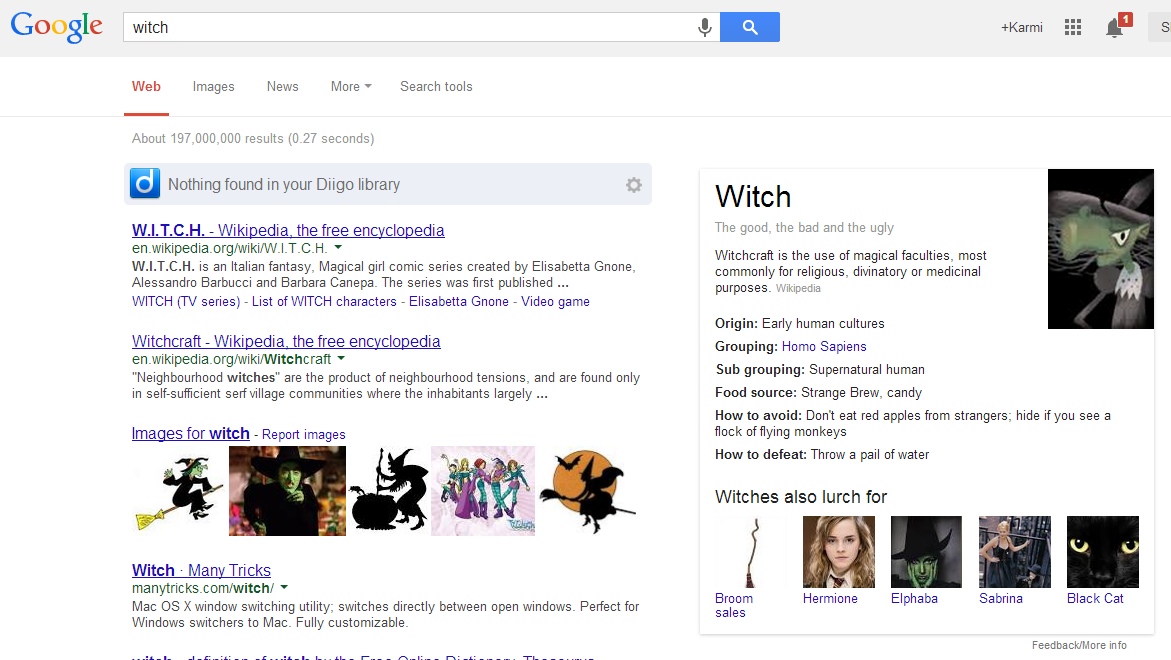
Google has rolled out some easter eggs just in time for Halloween. The company revealed to us that if you query [ghost], [witch], or several other keywords that fit this yearly tradition, the Knowledge Graph will display some interesting results. This is something similar to what the company did with Google Nose during April Fool’s this year.

Here’s an screenshot of what you’ll see if you search for [witch] in Google. Try it here.


If it’s not immediately noticeable, look at the knowledge card on the right-hand side and you’ll see some light-hearted data on a witch, including its food source, how to avoid or defeat it, and other important facts. Similar results will appear if you’re searching for “ghost”, “evil robot”, “skeleton”, “grim reaper”, and others. Google wouldn’t divulge the exact number of keywords that would display these easter eggs, but a spokesperson said that each one has some interesting results.

Unfortunately, this trick won’t work if you’re using the voice command on Google Now.

Easter eggs are nothing new to Google. It has a long history with them across all of its services, including search, Google Maps/Earth, Gmail, Google Translate, and others.

So far we’ve counted six keywords that display the Halloween easter eggs — are there any others that you’ve found?!

Source: http://thenextweb.com/google/2013/10/30/trick-treat-google-lays-halloween-easter-eggs-knowledge-graph/

Happy Halloween 2013 with Google Search


Google has rolled out some easter eggs just in time for Halloween. The company revealed to us that if you query [ghost], [witch], or several other keywords that fit this yearly tradition, the Knowledge Graph will display some interesting results. This is something similar to what the company did with Google Nose during April Fool’s this year.

Here’s an screenshot of what you’ll see if you search for [witch] in Google. Try it here.


If it’s not immediately noticeable, look at the knowledge card on the right-hand side and you’ll see some light-hearted data on a witch, including its food source, how to avoid or defeat it, and other important facts. Similar results will appear if you’re searching for “ghost”, “evil robot”, “skeleton”, “grim reaper”, and others. Google wouldn’t divulge the exact number of keywords that would display these easter eggs, but a spokesperson said that each one has some interesting results.

Unfortunately, this trick won’t work if you’re using the voice command on Google Now.

Easter eggs are nothing new to Google. It has a long history with them across all of its services, including search, Google Maps/Earth, Gmail, Google Translate, and others.

So far we’ve counted six keywords that display the Halloween easter eggs — are there any others that you’ve found?!

Source: http://thenextweb.com/google/2013/10/30/trick-treat-google-lays-halloween-easter-eggs-knowledge-graph/

Popular Posts